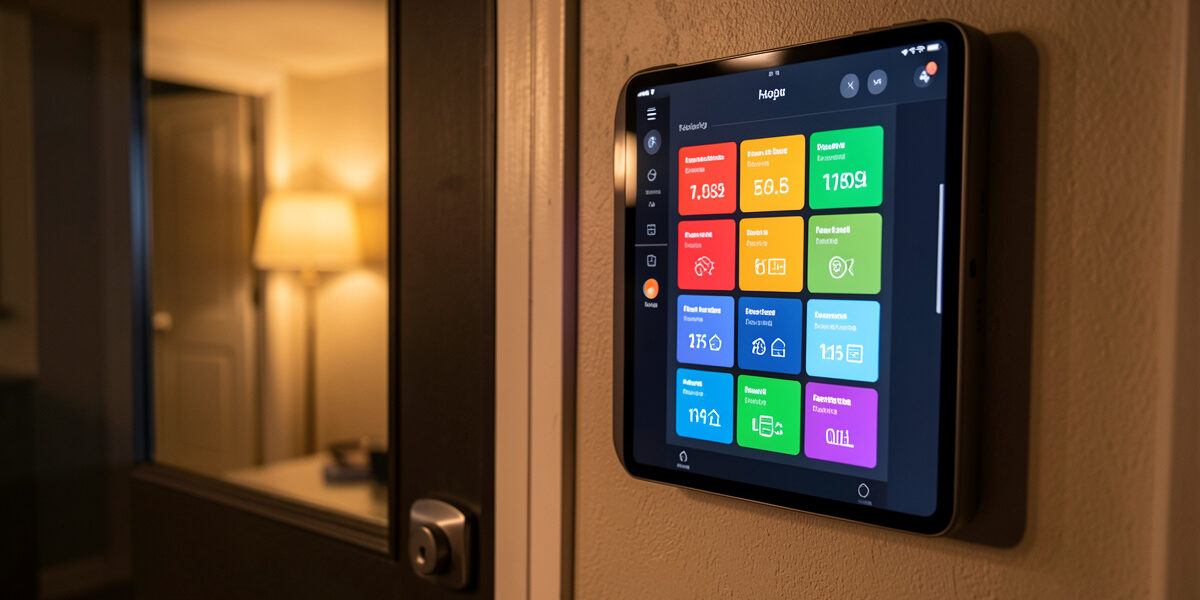
A Home Assistant coop dashboard is one screen that answers a single question — “is the flock safe right now?” — without opening five apps or walking out in the dark. Mine shows door state, interior and outdoor temperature, the run camera, the waterer’s power draw, and a row of alert toggles, organized top-to-bottom by urgency. The design rule that makes it useful is restraint: a dashboard that shows forty entities shows nothing, because your eye cannot triage it.
I keep mine on a cheap wall tablet by the back door and pull the same view up on my phone through the Home Assistant app. It is the single most-used part of my whole setup, more than any individual automation, because it is what I glance at before bed and first thing on a cold morning. This is how I built it. For the wider system it sits on top of, start with the Home Assistant coop automation guide; here we are building the screen.
Organize by Urgency, Not by Room
The default instinct is to group dashboard cards by device type or location. For a coop, group them by urgency instead, because the dashboard’s job is triage. I lay mine out in three bands, top to bottom: safety, climate, convenience. The things that kill birds sit at the top where my eye lands first; the things that are merely nice to know sit at the bottom.
Band one is safety: door state (open or closed, confirmed by the contact sensor, not just the motor’s word), the run camera, and any predator-motion status. Band two is climate: interior and outdoor temperature, humidity, and the waterer’s power reading so I know the heater is alive. Band three is convenience: the coop light, feeder status if automated, and historical graphs. When something is wrong, I see it in the top band in under a second. That is the entire point.

The Door and Contact Card
The most important card on the dashboard is door state, and the way I build it shows both the command and the reality. I use an entities card that displays the cover (the motorized door) and the separate contact sensor side by side. When both agree — door says closed, contact says closed — the card is calm. When they disagree, I want it loud.
That is where a conditional or templated card earns its place: I color or surface the door card red only when the cover and contact disagree, or when the door is open after dark. The rest of the time it sits quiet. This mirrors the door automation itself, where the contact sensor is the source of truth, and it ties directly into the door-failed alert in the notifications guide. A dashboard that turns red is a far faster signal than a number you have to read and interpret.
The Camera Card Without Hammering the Stream
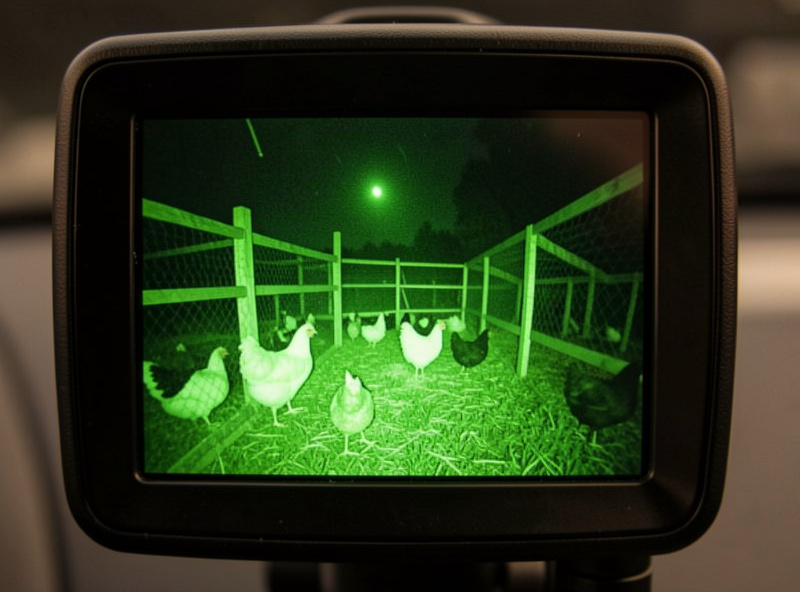
Cameras are the card people get wrong, because a live stream that runs constantly on a wall tablet hammers a PoE camera and chews bandwidth for a feed nobody is watching most of the time. The fix is to show a still snapshot that refreshes periodically on the dashboard, and only open the live stream when you tap it. Home Assistant’s picture-glance and picture-entity cards both support this: a low-frequency snapshot by default, full stream on demand.
That keeps the camera healthy and the dashboard responsive while still giving me a current look at the run at a glance. If I see something that needs a closer look, one tap brings up the live feed. The camera hardware and network side — why a PoE camera with proper IR beats a cheap Wi-Fi one that dies at the run edge — is in camera network setup and smart coop monitoring.
Climate Cards That Mean Something
For temperature and humidity I use simple gauge or entity cards with a history graph below them, because a single number tells you the moment but the graph tells you the trend — whether the coop is warming through the morning or the humidity is climbing toward the level where frostbite risk rises. Moisture, not cold, is what frostbites a comb, so on my dashboard humidity gets equal billing with temperature.
The waterer card is a power reading, not a temperature: it shows the wattage the heated-waterer plug is drawing. A glance tells me whether the heater is off (mild day), on and working (cold day, sensible wattage), or commanded on but dead (near-zero watts in freezing weather, which is my cue to act). That single card replaces walking out to check a waterer that may already be ice. The thresholds behind it are in coop temperature alerts, and the automation in freeze-watch.
Conditional Cards: Show Problems, Hide Calm
The most powerful dashboard trick is the conditional card — a card that only appears when something is wrong. My dashboard has a hidden “alerts” section that stays invisible while everything is normal and surfaces a red banner the instant the door fails to confirm closed, the heater reads dead in the cold, or a predator-motion event fires after dark. When the coop is fine, the dashboard is clean and quiet. When it is not, the problem appears at the top and demands attention.
This inverts the usual dashboard problem. Instead of scanning a wall of always-on cards to find the one that has gone bad, you build a calm screen that erupts only when it should. It takes a little more setup, but it is the difference between a dashboard you actually read and one you learn to ignore. Combined with the push notifications, it means the only time the coop demands my attention is when it genuinely needs it.
Wall Tablet and Mobile
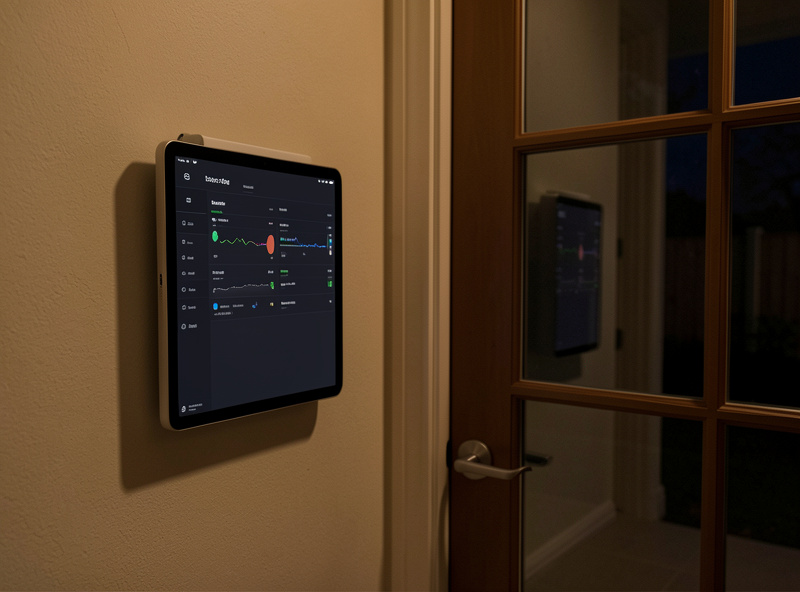
I run the dashboard two ways. A cheap wall-mounted tablet by the back door shows the safety band on a kiosk view, always on, so I glance at it on the way past. On my phone, the Home Assistant app shows the same dashboard plus the deeper graphs and the manual override buttons — the door open/hold control for cleaning or a broody hen, and a button to force the waterer on. Both views read from the same local Home Assistant instance, so they agree and they keep working when the internet does not.
Mount the tablet somewhere it gets seen but stays out of the weather, and set it to wake on motion or stay on a dimmed always-on display. The point of a wall tablet is that checking the flock costs zero effort — you see it whether you meant to or not. That ambient awareness is worth more than any single fancy card.
Building It Local-First
Everything on this dashboard reads from local entities — Zigbee sensors, an ESPHome node, a local camera, a local-network smart plug — so the screen stays live even when the cloud is down. That is deliberate and it matters: a dashboard that goes blank during an outage is useless exactly when you most want to check the flock. Keeping the whole coop local-first means the dashboard is a window onto a system that does not depend on anyone else’s servers to keep your birds safe.
Frequently Asked Questions
What should a Home Assistant coop dashboard show?
Show door state confirmed by a contact sensor, the run camera, interior and outdoor temperature and humidity, and the heated waterer’s power draw, organized top-to-bottom by urgency. Keep it minimal so your eye can triage it instantly. A dashboard with forty entities shows nothing because you cannot scan it.
How do I add a camera to the dashboard without slowing it down?
Use a picture-glance or picture-entity card set to show a periodic snapshot rather than a constant live stream, and open the full live feed only when you tap the card. A constantly running stream hammers a PoE camera and chews bandwidth for a feed nobody is watching most of the time.
What is a conditional card and why use it for a coop?
A conditional card only appears when a condition is met. For a coop, build a hidden alerts section that stays invisible while everything is normal and surfaces a red banner when the door fails to confirm closed, the heater reads dead in the cold, or predator motion fires after dark. The screen stays calm until something is wrong.
Can I run the coop dashboard on a wall tablet?
Yes. A cheap wall-mounted tablet running the Home Assistant app in kiosk mode shows the safety band always-on by the back door, so you glance at it on the way past. The same dashboard runs on your phone with deeper graphs and manual override buttons. Both read from the same local instance.
Will the dashboard work if my internet is down?
Yes, if it reads local entities. A dashboard built on Zigbee sensors, ESPHome nodes, a local camera, and local-network plugs stays live during an internet outage because everything talks to your local Home Assistant instance. A cloud-dependent dashboard goes blank exactly when you most want to check the flock.
Related Guides
- Home Assistant Chicken Coop Automation: The Complete Guide
- Home Assistant Coop Notifications: Door-Failed and Predator Alerts
- Smart Coop Cameras: Network Setup for Reliable Predator Alerts
- Home Assistant Freeze-Watch: Automating the Heated Waterer
- Smart Coop Monitoring: Cameras, Sensors & Apps
Related Guides
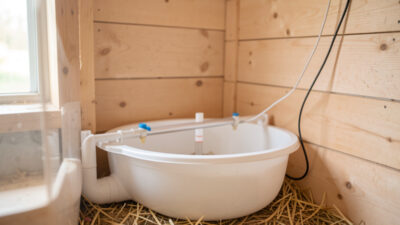
Water-Level and Flow Sensors: Knowing the Waterer Is Empty Before They Do
A coop water-level sensor tells you the drinker is going dry — or freezing solid — before the flock does,…
Ammonia Sensors for the Coop: Catching Air Problems Before You Smell Them
An ammonia sensor belongs at the birds’ breathing height, close to the litter where the gas is generated, because that…
Node-RED vs Home Assistant Automations for the Coop: When to Use Which
Use native Home Assistant automations for the coop’s simple, safety-critical rules — the sunrise door, the freeze-watch waterer — and…